Customer Debt Tracker Spreadsheet (Free Excel & Google Sheets)
A free customer debt tracker spreadsheet for shops: record credit and payments, see each customer's balance and who is overdue. Works in Excel and Google Sheets.
This free template tracks what each customer owes your shop. You add one row for every sale on credit and every payment on the Entries sheet; the Customers sheet adds them up with formulas and shows each customer's balance, latest due date and status: Overdue, Open or Paid. It opens in Excel and in Google Sheets.
Download the customer debt tracker (Excel)
What is in the template
| Sheet | What you do there | What it does for you |
|---|---|---|
| Customers | type each customer's name once, and a phone number | adds up credit and payments, shows the balance, the latest due date and the status |
| Entries | add one row per sale on credit or payment: date, customer, type, amount, due date, note | offers the customer names and the two types in drop-down lists, so the names always match |
| How to use | read the short instructions | keeps the rules in the file for anyone who opens it |
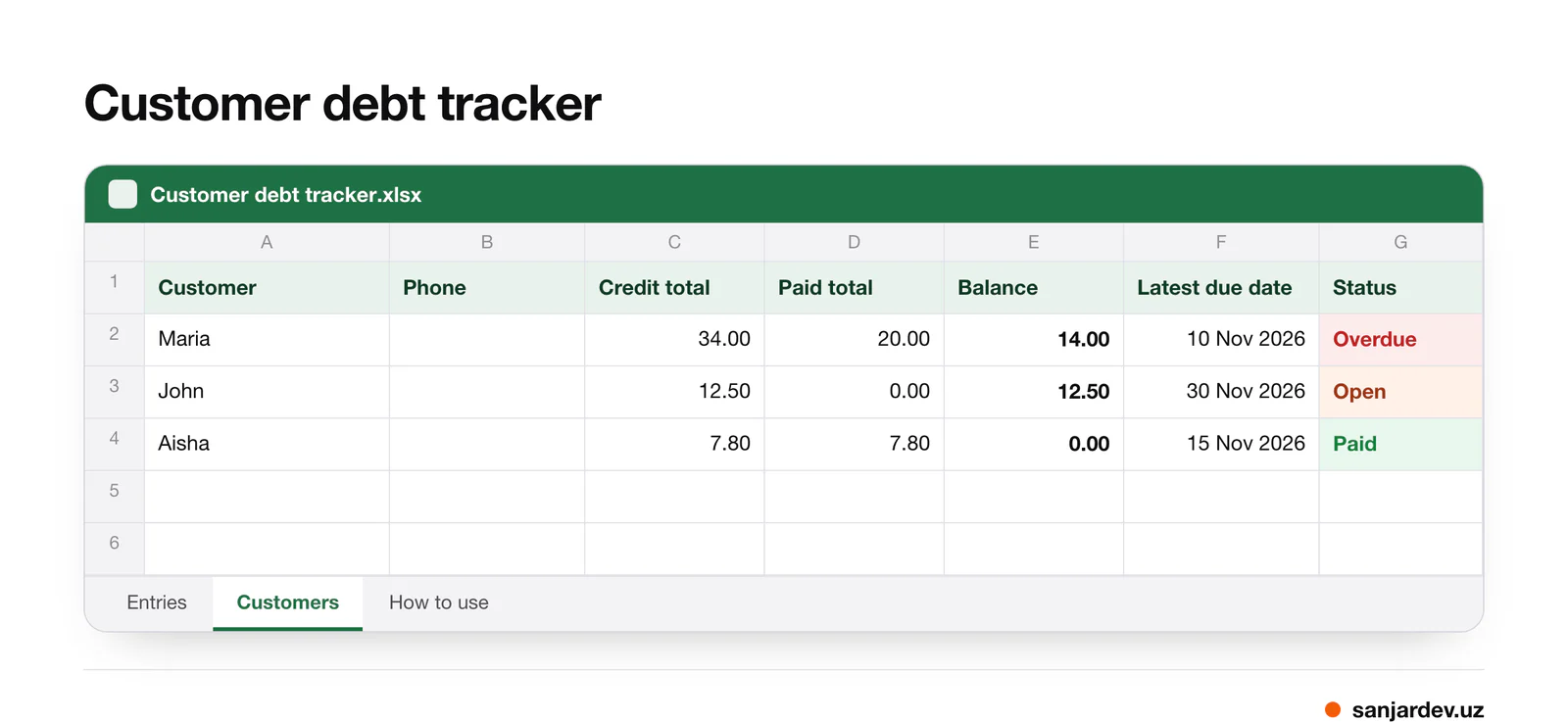
The file opens with three sample customers so you can see how it works. On 14 November 2026, Maria owes 14.00 after paying 20.00 of 34.00, and her due date, 10 November, has passed, so she shows as Overdue. John owes 12.50 due on 30 November, so he is Open. Aisha has paid everything, so she is Paid. Type over the sample names on the Customers sheet and clear the sample rows on Entries before you start.
Step by step
- Add your customers. On the Customers sheet, type each name in column A and the phone number in column B. Write each name once, exactly as you want to see it.
- Record a sale on credit. On Entries, fill in a new row: the date, the customer from the drop-down list, the type Credit, the amount, the due date you agreed, and in Note what was taken.
- Record a payment. Add a row with the date, the customer, the type Payment and the amount. Leave the due date empty.
- Check the balances. On Customers, Credit total, Paid total and Balance update by themselves.
- Find who is late. Use the filter on the Status column to show only Overdue customers, and remind them. Our polite payment reminder templates help with the wording.
- Once a month, look through the Open and Overdue customers, and save a copy of the file with the month in its name.
Type amounts as plain positive numbers, without currency signs, and type dates as real dates, not words like "Friday". The spreadsheet can only add up numbers and compare dates it recognizes.
How the formulas work
The Customers sheet does three simple things for every name in column A:
- Credit total adds up all the Credit rows of that customer on Entries, and Paid total adds up their Payment rows.
- Balance is Credit total minus Paid total. A negative balance means the customer has paid more than they owe.
- Latest due date shows the latest due date among the customer's Credit rows, and Status reads: Paid when the balance is zero or less, Overdue when money is still owed and that date has passed, and Open in every other case.
This is deliberately simple, and it has one limit you should know. The sheet treats each customer's balance as one sum, so it does not know which purchase a payment was for. If a customer has an old purchase that is already late and a new one due next month, the status shows Open until the later date passes. When you need the exact overdue amount, look at that customer's rows on Entries, apply their payments to the oldest purchases first, and whatever is left of purchases with past due dates is overdue.
The due date column uses the MAXIFS function. Microsoft says it is available in Office 2019 and newer and with a Microsoft 365 subscription, and Google Sheets has it too. In older versions of Excel, that column and the status of customers who owe money show an error, while the totals and balances still work.
Opening it in Google Sheets
Upload the file to Google Drive and double-click it: according to Google's help, Drive opens Office files in Docs, Sheets or Slides, where you can edit them or convert them. The template has no macros, which Google Sheets does not support, so nothing is lost.
A Google Sheet has one real advantage: a partner or a second seller can add rows from their own phone. Agree on who writes when, and add new rows at the bottom, so nobody types over someone else's entry. The Entries sheet is formatted for about a thousand rows, which is a long time for a small shop.
Common mistakes
| Mistake | What goes wrong | How to avoid it |
|---|---|---|
| typing names by hand ("Maria" and "Maria S.") | the payment lands on a different customer | always pick the name from the drop-down list |
| a payment entered as a negative Credit | Paid total stays empty and the status can be wrong | use the type Payment with a positive amount |
| leaving Type empty | the row is not counted at all | choose Credit or Payment in every row |
| "20 USD" or "20,-" in Amount | the cell becomes text and is not added up | numbers only |
| a date typed as a word | the sheet cannot compare it, the status stays Open | type a real date |
| deleting rows once a debt is paid | the history and the totals change | keep every row, it is your record |
| sorting one column only | rows of different customers get mixed | select the whole table before sorting |
| renaming a customer on one sheet | old entries stop matching | rename on both sheets with Find and Replace |
What a spreadsheet cannot do
A spreadsheet is a good step up from a paper book, but it has limits worth knowing before you rely on it:
- It does not remind anyone. You still have to look at the Status column and write each message yourself.
- It is slow at the counter. Finding a customer by name or phone number, picking a type and typing a date on a phone while people wait takes far longer than a tap.
- Several sellers at once are risky. An Excel file lives on one computer. A shared Google Sheet works on several phones, but anyone with edit access can change or delete old rows, and a mistake is easy to miss.
- The customer does not confirm anything. A row in a sheet is only your record. On paper the customer can initial the line; with a sheet, send them a short message after each purchase and keep their reply.
- It does not match payments to purchases, as explained above.
If you have a few dozen customers and sit at a computer every evening, the template is enough. If you sell on credit all day at the counter, a paper customer credit book or an app on your phone is faster.
FAQ
Is there a free debt tracker template for Google Sheets?
Yes, this one. Download the Excel file, upload it to Google Drive and open it in Google Sheets. All the formulas it uses exist in Google Sheets.
How do I track customer debts in Excel?
Keep one row per transaction, with the date, the customer, the type, the amount and the due date, and add up each customer's rows on a separate summary sheet. The template does exactly that with SUMIFS formulas, so you only fill in the rows.
What is an accounts receivable template?
Accounts receivable is the money customers owe a business. An accounts receivable template lists credit sales or invoices and the payments against them. Bigger companies add an aging report that groups debts by 30, 60 and 90 days late; for a small shop, each customer's balance and due date is usually enough.
Does the template come with formulas?
Yes. On the Customers sheet, the totals use SUMIFS, the due date uses MAXIFS and the status uses IF; click a cell to see its formula. Type only in the Customer and Phone columns there, so you never overwrite a formula.
How Daftio helps
Daftio, the app we develop for Android, does what the Customers sheet does without any formulas. You pick a customer, type the amount and tap Debt or Payment, and Daftio shows the balance after every entry, the overdue amount and how many customers are late. It applies payments to the oldest debts first, so the overdue part is exact, and a ready reminder with the amount and due date can go out through WhatsApp, SMS or Telegram when you tap Send. Without a subscription, Daftio covers one shop and up to 30 customers; Daftio Pro, a yearly subscription with a 7-day trial, adds unlimited customers, past months' reports and CSV export for Excel or Google Sheets. It does not import this spreadsheet: enter each customer's current balance as one debt. Daftio on Google Play.
Sources
- MAXIFS function — Microsoft Support, 2026
- MAXIFS — Google Docs Editors Help, 2026
- Work with Office files — Google Docs Editors Help, 2026
Written by Sanjar Jabborov, developer of Daftio. Checked against Microsoft and Google help pages. Updated on 14 November 2026.